MePass

MePass RSVP &
Event Management

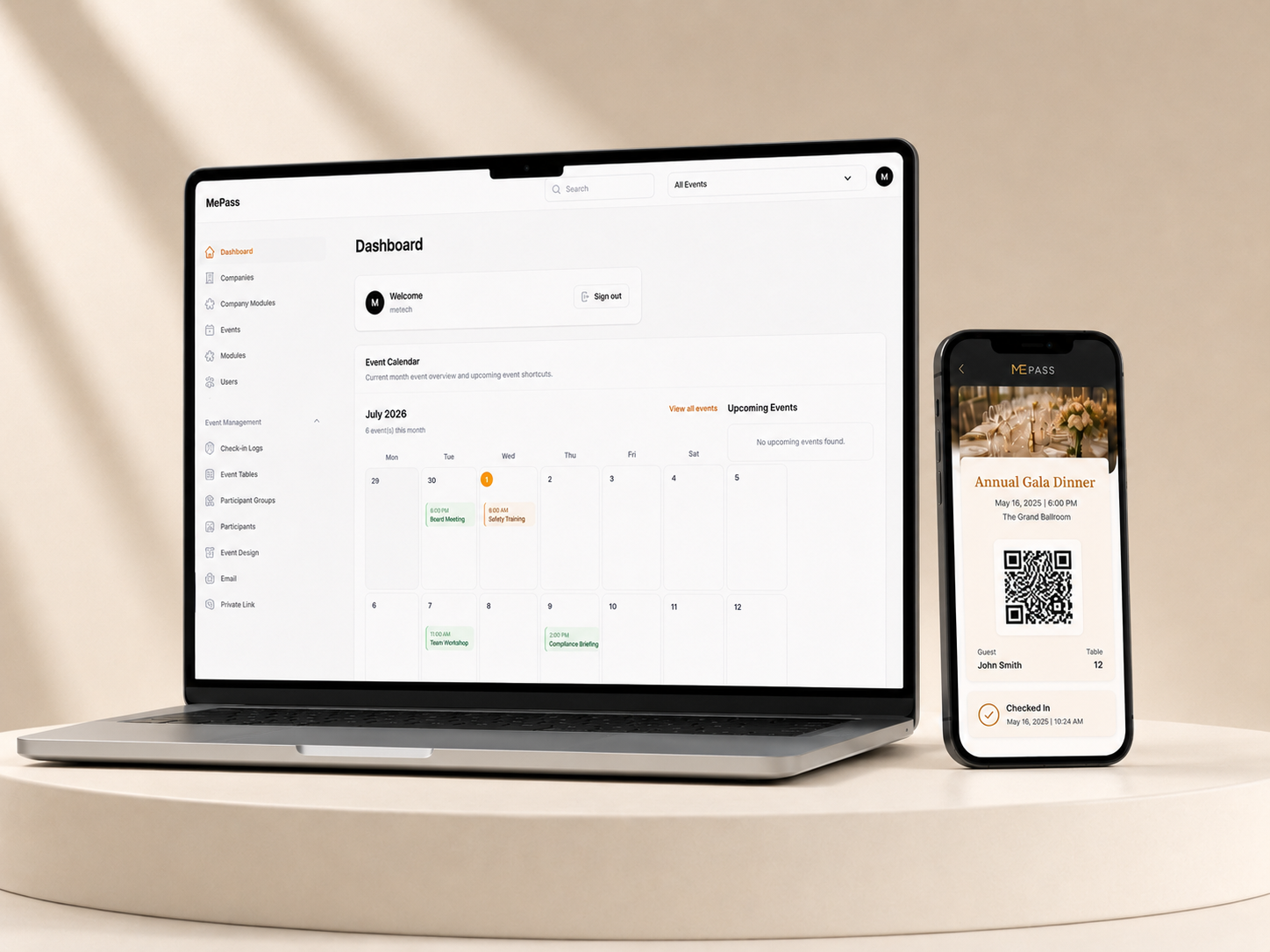
A smart RSVP, guest check-in and table management system designed for corporate events, weddings, banquets, conferences and private functions.
Fast Check-In
Secure QR System
Paperless Events
MePass RSVP and Event Management System
Two Smart Modes

Built for Different Event Types

1

Self Check-In

Guest Scan QR Code & Check In

Suitable for open registration events. Guests scan the event QR code, fill in their details and complete check-in smoothly.

2

Event Pass

Guest Get Unique QR Code

Suitable for named guest events. Each invited guest receives a unique QR code for secure verification and check-in.

Powerful Features

Manage Every Guest With Confidence

Customisable Sound Branding

Add branded audio cues for successful registration and guest check-in.

Offline Check-In App

Scan and check in guests with a dedicated app, even without internet access.

Easy RSVP Management

Create events, collect RSVP responses and manage guest lists efficiently.

Unique QR System

Generate secure QR codes for guests or event-level check-in access.

Smart Check-In

Speed up event entry with real-time attendance tracking.

Table Management

Assign tables and help guests find their seats with less manual work.

Real-Time Insights

Monitor RSVP status, check-ins and attendance from a live dashboard.

Secure & Reliable

Designed for controlled guest access, accurate records and event confidence.

Suitable For

From Corporate Events to Grand Celebrations

MePass helps organisers reduce manual registration work, improve guest experience and keep event operations organised.

Corporate Events
Weddings & Banquets
Conferences & Seminars
Membership Events
Private Parties

Manage Events With Confidence

Simplify RSVP collection, guest check-in, attendance tracking and table management with MePass by MeCard.

Visit pass.mecard.my

Please rotate your device to Landscape mode and back to Portrait mode if the design doesn’t load properly.

  1. Click on the “Name” field and type your name.
    (Tip: The name can have up to 8 characters, including spaces.)
  2. Once you’ve entered your name, click “Add to Cart” to confirm.
  3. Follow the steps to complete your order.

Custom Section

  1. To add an image, click on the “Insert/Edit Image” button.
  2. Find an image online and copy its URL. (Make sure the image is hosted online and accessible through a URL), paste into Source column.
  3. Unlock the Constrain Proportion, and set both the Width and Height to 100%. (This ensures that the image will be displayed at its original size)
  4. Click the “Save” button to apply the changes.
  1. To add video, locate and click on the “Insert/Edit Media” button.
  2. Find a YouTube video that you’d like to embed and copy its URL, paste into Source column.
  3. Unlock the Constrain Proportion, and set the Width to 100% , Height to 250 (or adjust as needed) to maintain a reasonable aspect ratio and avoid distorting the video.
  4. Click the “Save” button to apply the changes.

Login to your Agent Portal

Product Page :

Home Page :

Mecard Corporate :

At Layout , you can choose from 8 ready Layout
 
*Only Layout 2 and Layout 5 support Banner Image
 
To set Banner Image , go Profile > Banner Image


Choose option below as your Layout Background Type :

  1. Color
  2. Image
  3. Gradient
  4. Transparent

Choose option below as your Card Background Type :

  1. Color
  2. Image
  3. Gradient
  4. Transparent

Tip

Switch back to ENGLISH for correct Translation

切换回ENGLISH以获得准确的翻译

Let us design for you

(Template) is based on our extensive collection of templates which includes your Information, but does not incorporate any specific pattern you may have requested.”
“You may request up to 3 minor revisions to ensure the design meets your expectations.”
“Design in your preferred way.”
“You may request up to 3 revisions to ensure the design meets your expectations.”

Step 1 : Simply choose Your preferred Type of “Design for me , checkout and make Payment

Step 2 : Prepare Information below and Order Number , email to admin@mecard.my

  1. A picture of your name card
  2. Information to display on card. Example : Name , Job Title , Company Name 
  3. Logo of your company (AI / VECTOR file)

Landing Mode

Landing Page

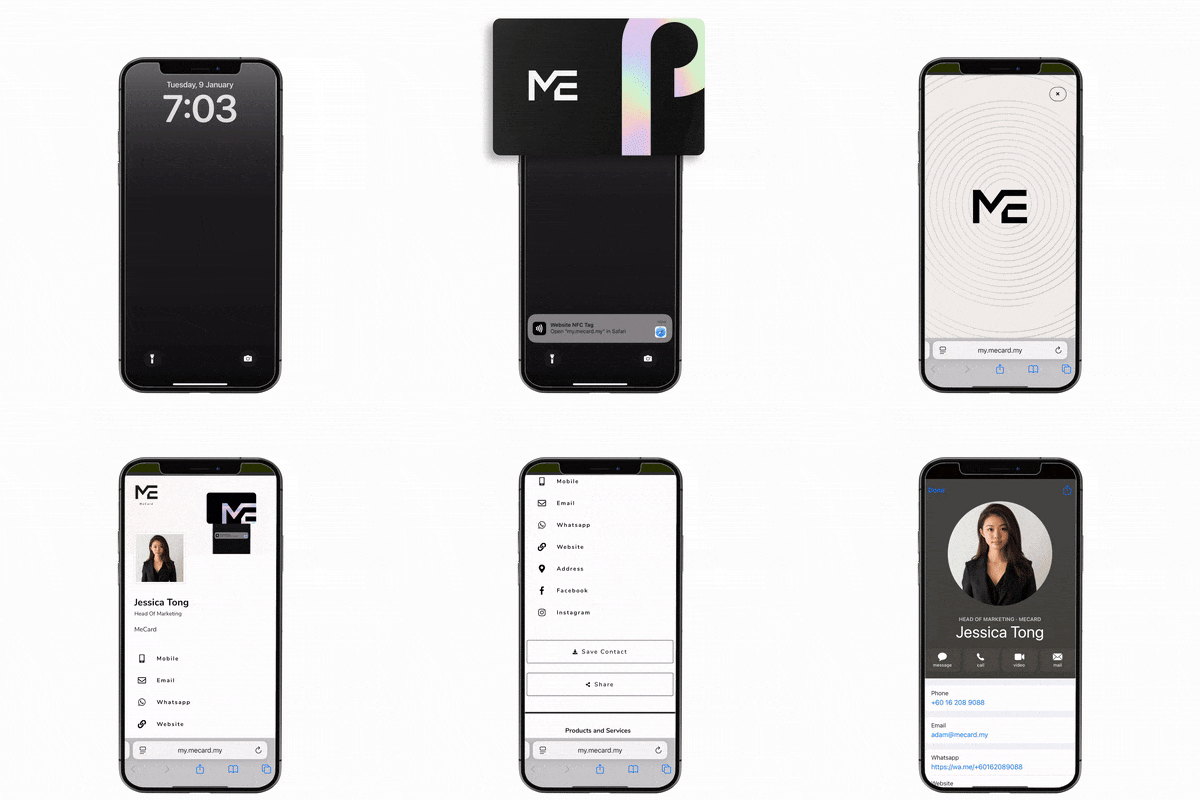
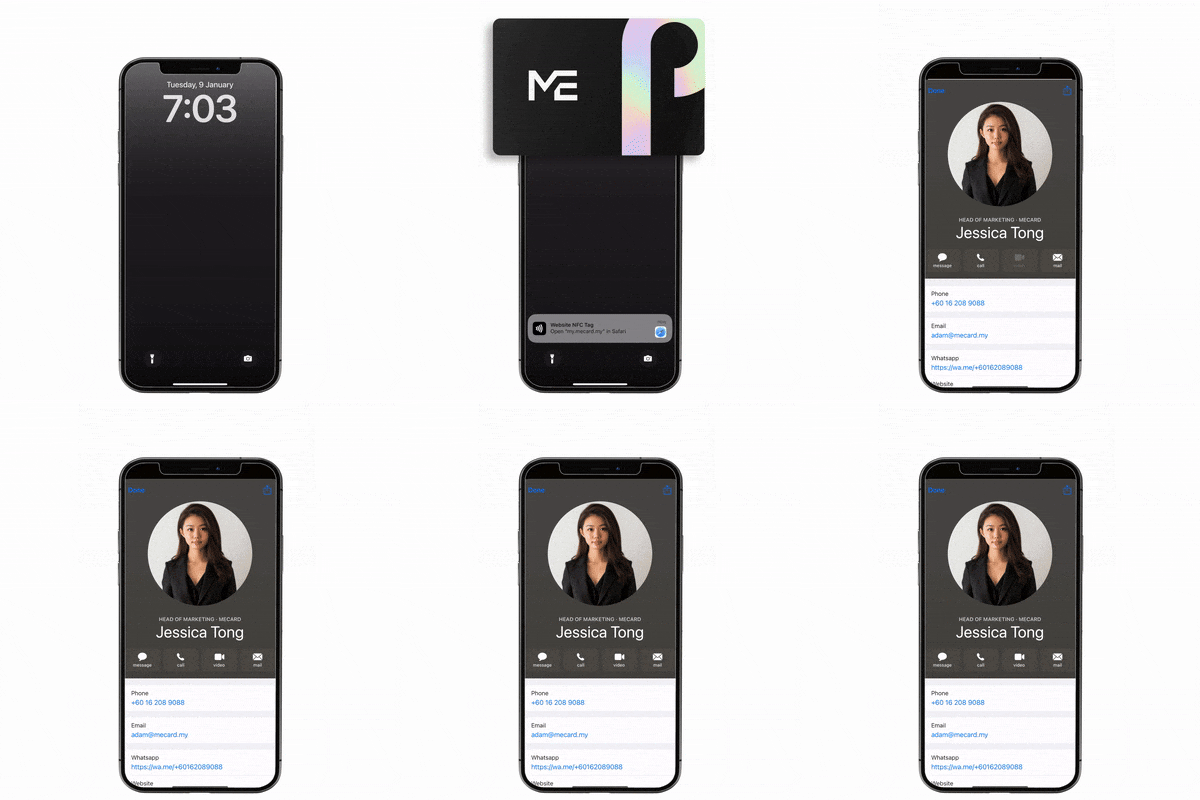
Direct Save Contact

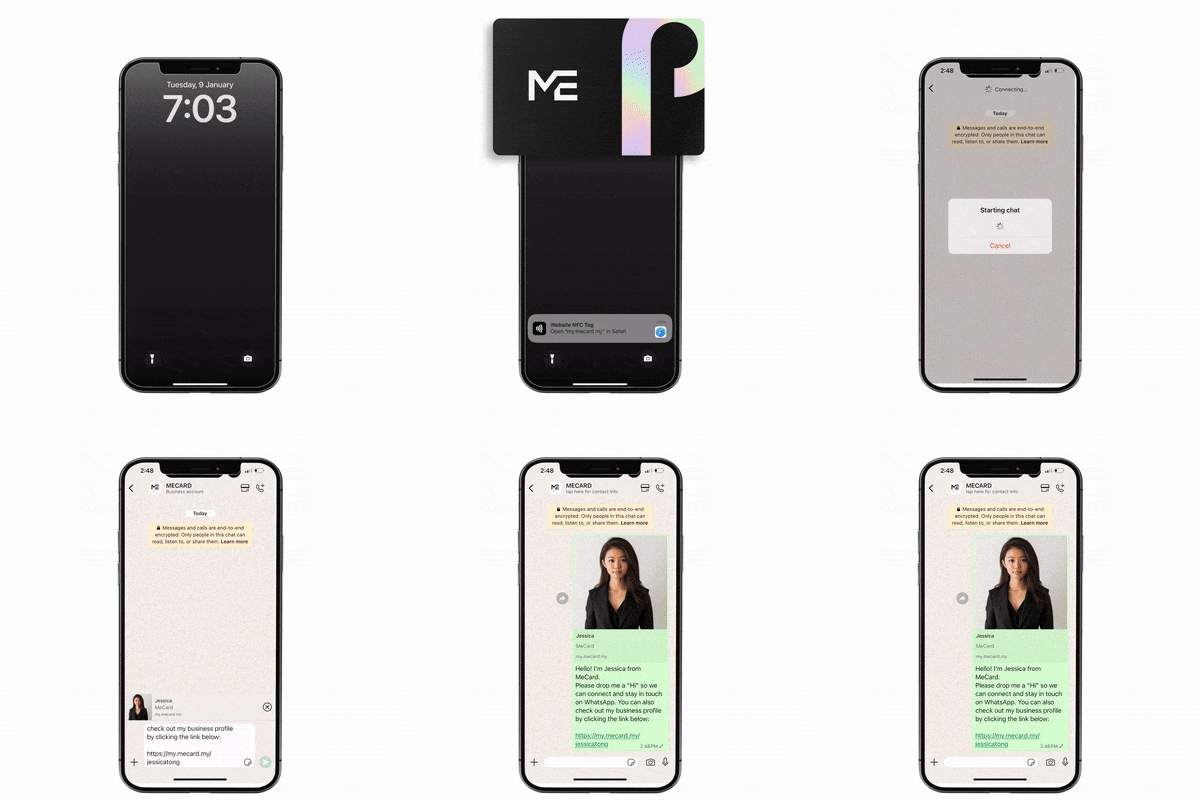
WhatsApp Chat

Once you’ve completed the Design, we’ll send you an artwork sample before proceeding to printing.

Contact Details

Create your Contact Information , Social Media here.

Create > Select Field Type > Select the Contact Details you want to add

Step 1 : Go Google Map
Step 2 : Search your Address > Click Share > Copy Link
 
Step 3 : Paste into Google Map Link

1. Title (Title that will be display)

2. URL (URL that will be save)


Click “Copy” and send your Agent link to anyone who is interested in buying MeCard’s products.

QR code same as your Agent Link. Anyone can scan your QR Code and the system will be able to trace the sales coming from you.

Referral = Sales

Once your customer’s order is “Processing / Completed” , you’ll see the transaction record display here.

Once your customer’s order is “Processing / Completed” , you’ll see the Order Details display here.

See your Statistics here.

When someone click your link, you can see your referral link status here.

Responses may vary, ranging from just 10 seconds to a maximum of 10 minutes.

Once the MeCard payout goes to your bank account , you’ll see the payout transaction here.

Whenever anyone clicks your Agent link or scans your QR Code , Cookies will stay in MeCard’s server for 7 days.

Which means your customer buys within 7 days from the day they click your Agent link / scan your QR Code, the system will recognise the sales is from you.